[Notice of UI Terminology Change]
With recent updates, the term "Member" in the system has been changed to "User." If you still see "Member" in some parts of the help documentation, please read it as "User." For more details on this change, please refer to this announcement.
With recent updates, the term "Member" in the system has been changed to "User." If you still see "Member" in some parts of the help documentation, please read it as "User." For more details on this change, please refer to this announcement.
This page explains how to edit or delete user information in User Profiles.
Note: The screenshots in this article are currently taken from the Japanese version of the product. Some labels in the images may differ from the English interface.
Overview
This page explains how to edit or delete user information individually in User Profiles.
💡 Editing or deleting a user in Josys does not edit or delete the SaaS accounts linked to that user, nor does it modify any information in your source systems such as Google Workspace, Microsoft 365 (Entra ID), or SmartHR.
⚠️ If you delete an IT Admin from User Profiles, they will no longer be able to log in to Josys.
Target Audience
IT Admins
Steps
There are four ways to edit user information.
Please choose the method that best suits your needs.
1. Editing Users Individually in Josys
- Click "Users" in the left sidebar to open User Profiles.
- In User Profiles, click the three-dot icon at the right end of the row for the employee you want to edit, and click "Edit."
- A pop-up window will appear. Update the fields you want to change.
💡If department synchronization is enabled in your master settings, editing the "Departments" field will also update the department information in the corresponding source SaaS application for that user.
💡If you want to add more fields to manage, please refer to the following help page.
Reference: Setting Up Custom Fields
Reference: Setting Up Custom Fields
2. Bulk Editing via CSV File
Please refer to the following page:
Bulk Editing User Information via CSV File
3. Bulk Editing and Deleting in Josys
Fields that can be updated via bulk edit:
- Status
- Departments
- Job Title
- Work Locations
- User Type
- Start Date
- Memo
Steps:
- Click "Users" in the left sidebar to open User Profiles.
- Confirm that checkboxes are displayed on the left side of each user's data.
- Click the checkbox for the row of each user you want to edit.
The checkbox will be checked, and the selected user's row will turn orange. You can select up to 100 users at a time. - Once you have selected all target users, click the field you want to update from the menu displayed at the top of the page.
- <For Bulk Edit> An update window will pop up. Enter the new details and click the "Update" button.
- <For Bulk Edit> A pop-up notification confirming the changes will appear in the bottom left.
- <For Bulk Delete> A final confirmation screen will appear. Click "Delete."
- <For Bulk Delete> A pop-up notification confirming the deletion will appear in the bottom left.
- The bulk edit/delete process is now complete.
If you want to edit other fields, repeat the same steps.
⚠️ You can only edit one field at a time.
If you want to edit multiple fields, please select the users again for each field.
If you want to edit multiple fields, please select the users again for each field.
⚠️ If you have configured External Data Sources with Google Workspace, Microsoft 365, etc., the delete button will not be displayed.
4. Deleting Users Individually in Josys
- Click "Users" in the left sidebar to open User Profiles.
- In User Profiles, click the three-dot icon at the right end of the row for the employee you want to delete, and click "Delete."
- A pop-up window will appear. Click "Delete."
💡 For users whose master source is set to Google Workspace or Microsoft 365 (Entra ID), the "Delete" option will not be displayed.
To delete them, please delete their Google Workspace or Microsoft 365 (Entra ID) account first.
(Reference: Deleting or Suspending Accounts)
Afterward, an alert stating "...has been deleted" will appear in the top left of the user details screen.
From there, you must select "Delete this user from User Profiles" to complete the deletion.
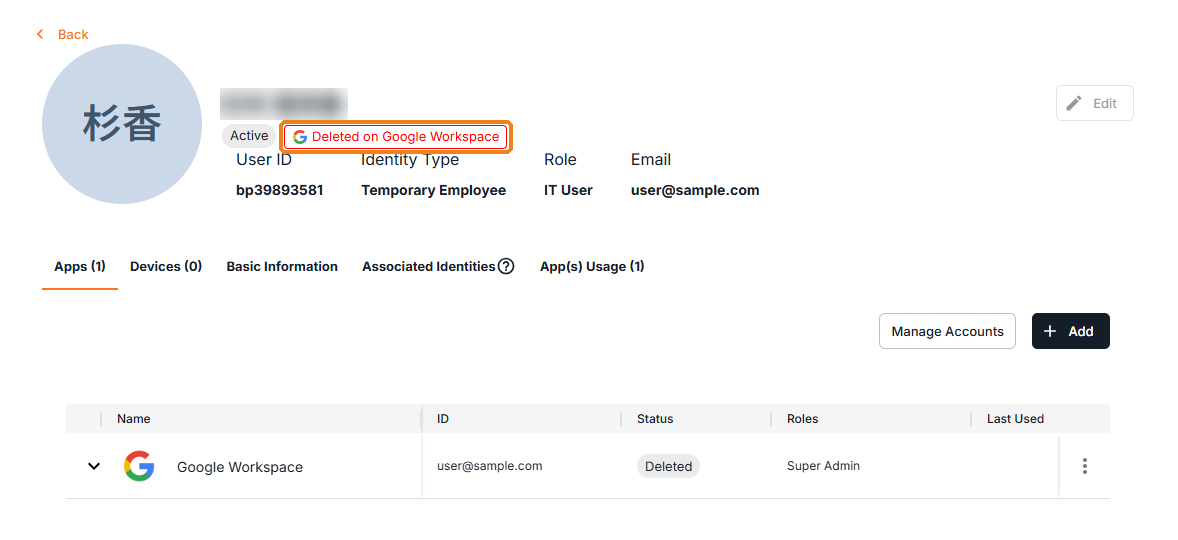
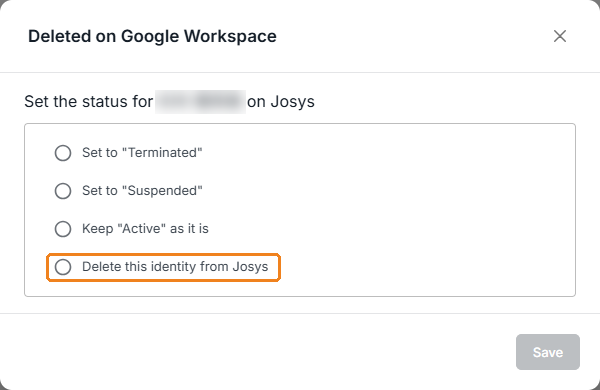
To delete them, please delete their Google Workspace or Microsoft 365 (Entra ID) account first.
(Reference: Deleting or Suspending Accounts)
Afterward, an alert stating "...has been deleted" will appear in the top left of the user details screen.
From there, you must select "Delete this user from User Profiles" to complete the deletion.