Note: The screenshots in this article are currently taken from the Japanese version of the product. Some labels in the images may differ from the English interface.
Overview
This page describes how to integrate Google Drive with File Governance.
Note: Administrator privileges for Google Workspace are required for the integration.
Reference: About the File Governance Feature
Integration Steps
- <If you have already integrated the app> Proceed to the next step.
<If you have not integrated the app yet> Please refer to the page below to integrate the app.
Reference: Google Workspace - From the left menu, click "Integrations > External Data Sources".
- In the Files tab, click the "Integrate" button on the Google Workspace card.
- If this is your first integration, a pop-up will appear indicating that you need to install the app from the Google Workspace Marketplace. If this is displayed, please proceed to the installation steps below.
If you have integrated in the past and "Josys for File Governance" is already installed in Google Workspace, a pop-up will appear in the bottom-left corner, and the process is complete. - From the left menu, click "Access > File Governance", and the synchronization screen will be displayed. Please wait until the synchronization is complete. Synchronization may take some time.
How to Install the App in Google Workspace Marketplace
- Click "Open" from the pop-up.
- The Google Workspace Marketplace page will open.
- Click the "Admin Install" button.
- When the pop-up appears, click the "Continue" button in the bottom right.
- When the pop-up appears, check the agreement checkbox at the bottom and click "Done" in the bottom right.
- When the pop-up appears, click "Done" in the bottom right to complete the setup.
- Return to Josys and click the "Integrate" button again.
⚠️ To enable File Governance, additional permissions are required beyond the standard app integration. Therefore, if you have already completed the app integration with Josys, a message may be displayed indicating that re-integration is required.
In that case, click "Re-integrate App" in the displayed pop-up to proceed with the re-integration.
Reference: Delete / Re-integrate Apps
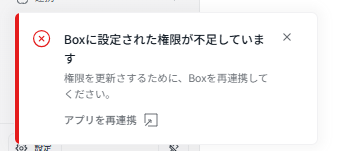
In that case, click "Re-integrate App" in the displayed pop-up to proceed with the re-integration.
Reference: Delete / Re-integrate Apps